Welcome to the site!
What is Drama-Otaku.com? It’s a fansub and subtitle archive for Japanese Dramas, Movies, and Specials.
This is a quick starter guide on how to get the most out of Drama-Otaku.com.
The Rules
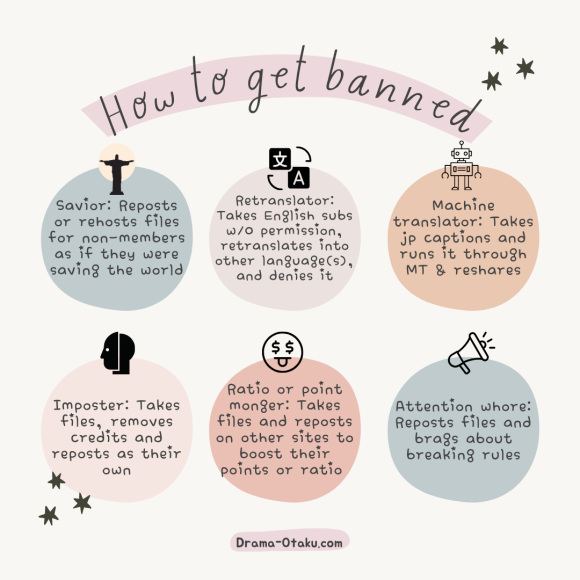
- By using the site, you agree you won’t reshare/rehost any files and links found on the site.
- Do NOT share your account!
- Do not re-translate, machine translate without the expressed permission from the original Subtitle Provider.
- Exception #1: You can rehost fansubbed videos if hardsubbing using Drama Club RAWs, but please credit us accordingly.
- Exception #2: You can translate from Japanese subtitles, but please credit accordingly if using Drama Club RAWs.
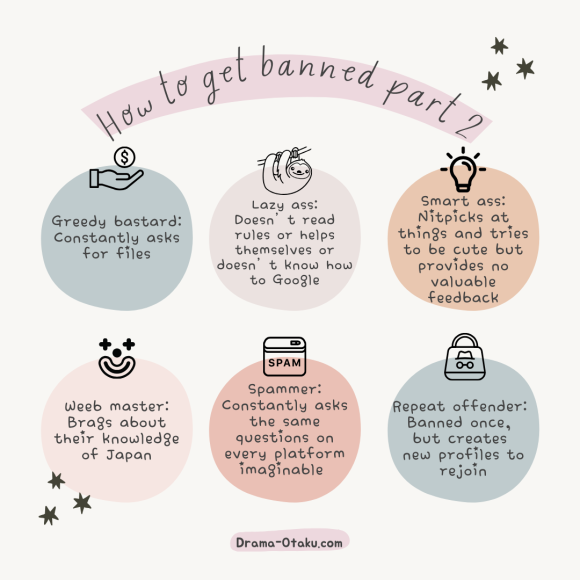
- Do not use the comments section to request or ask about subtitles, RAWs, files or links. Look at the FAQs below on how to address issues.
- Also be kind! No bashing and rude comments that can discourage, offend or hurt fansubbers and other users.
Offenders will be banned.
FAQs
How do I reset my password?
1. Login to the site
2. Hover over your profile icon then go to Settings

3. Under the Settings section, go to Privacy or click this.
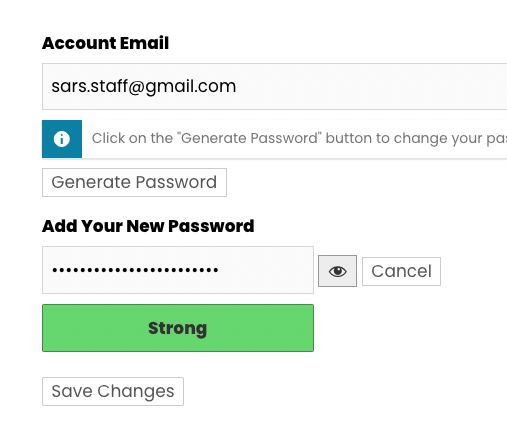
4. Click the Change Password button

5. Add your new password in the field that pops up (note this down!) and click the Change Password again.
6. Your password is now saved!
Get the most out of the site with the following resources
– Drama Resources Guide (lots of helpful tips here!)
– FAQs and General Help
How do I find subtitles on the site?
– If you follow the 字Subtitle Project Exists jimaku icon, you’ll find subtitles!
– Read this guide.
– You can use Treasure Island (formerly The Subtitle Project Index) — think of it like the Fansub Map on steroids
– Use Advanced Search
MEMBERS ONLY
===READ THIS SECTION AFTER YOUR ACCOUNT IS APPROVED===
How do I find RAWs (video files) on the site?
Video files of any type that do not include subtitles are known as RAWs in the community, otherwise known as Pirate’s Booty on Drama-Otaku.
If you follow the anchor icon, you’ll find the booty!
For Dramas, Movies, and Specials
– Go to Search or Advanced Search
– Search for the title you’re looking for
– Go to the Drama, Movie, or Special page
– For Movies, check underneath the poster and details for a button with an anchor icon
– For Dramas and Specials, look for the anchor icon next to the specific Episode in the Episodes tab
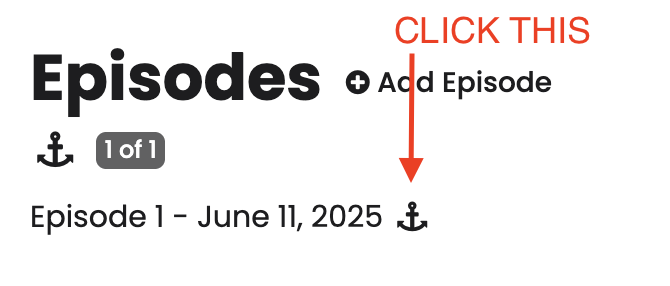
– Click the button or anchor icon (if you’re in the Episodes tab) which will lead you to a pop-up with the available files
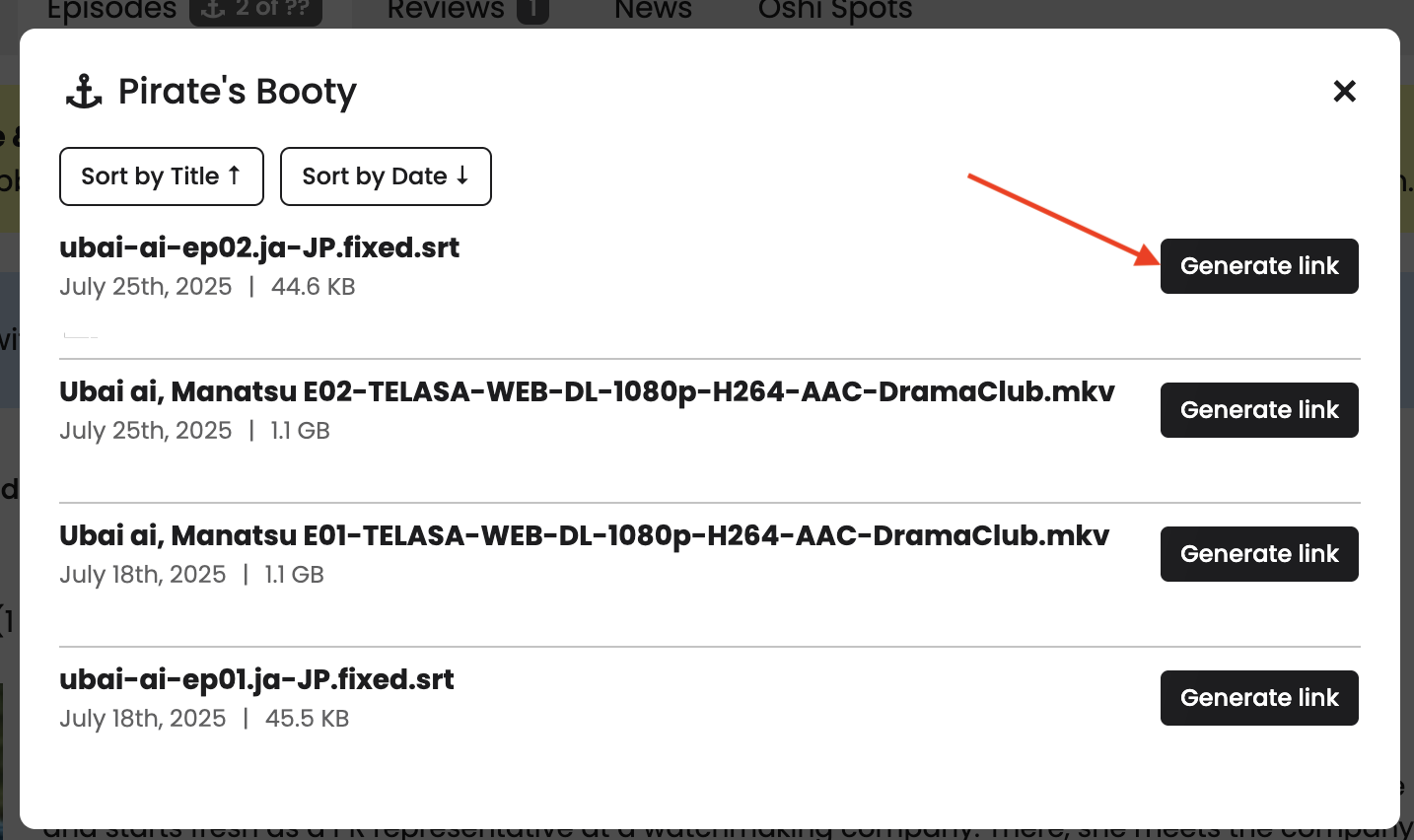
– Click the Generate link, then click the Download button

For Daily Pirate’s Booty
– Check the Pirate’s Booty archive
NOTE: Currently airing Jdrama RAWs are uploaded daily and older Jdramas are uploaded whenever we have time.
How can I request RAWs on the site?
RAW requests are for Sempai-level Patreon tiers only.
Again, do not use the comments section to request anything.
How can I request subtitles on the site?
Check underneath the synopsis of any title that doesn’t have subtitles yet.
Click the Request Subtitles button > Select the language > SUBMIT.
Votes are tallied and gives fansubbers a way to gauge interest.
Again, do not use the comments section to request anything.
How do I report issues to staff?
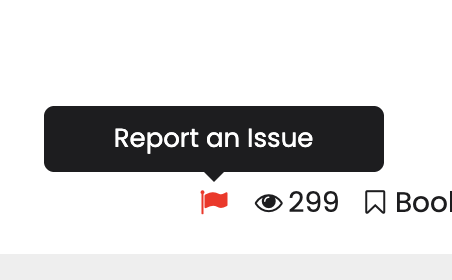
Report dead links or issues by clicking on the red flag icon at the top right corner of the page.
If you need step-by-step instructions on how to Report an Issue, you can find them here.
Staff will only host/re-host the following:
– Dead WeTransfer links
– Gofile upload/link issues
– Dramas/Movies that have Subtitles on Drama-Otaku that do not have existing RAWs
Again, do not use the comments section to request anything.
What are Hardsubs, Softsubs, Embedded Softsubs, and RAWs?
Hardsubs (hard subtitles): Subtitles that are permanently embedded into the video.
Characteristics: Cannot be turned off or edited as they are part of the video stream itself.
Common filetypes: .mkv, .mp4, .avi.
Usage: Ideal for platforms or formats that don’t support separate subtitle files, but lack flexibility.
Softsubs (soft subtitles): Subtitles that are stored separately from the video file.
Characteristics: Can be turned on/off, edited, and replaced without modifying the video file.
Common filetypes: .srt, .ass, .vtt.
Usage: More versatile, allowing users to switch between multiple subtitle tracks or languages.
Embedded Softsubs: These are subtitle tracks that are embedded within the video file itself but are not hardcoded.
Characteristics: Can be turned on/off and can often be switched between different languages or styles if multiple tracks are available.
Usage: Using embedded softsubs is straightforward with modern media players that support multiple subtitle tracks and there’s no need to pair subtitles with the correct video file.
RAWs: Video files of any type that do not include subtitles are known as RAWs in the community.
Common filetypes: .mkv, .mp4, .avi.
How do I watch videos with subtitles?
How to Play Softsubs with Video (RAWs)
Step 1: Gather Your Files
- RAW Video: The original video file without any subtitles embedded.
- Subtitle File: The softsub file, typically with extensions like .srt, .ass, .ssa, etc.
Step 2: Choose a Media Player
You’ll need a media player that supports external subtitle files. Popular options include:
- VLC Media Player
- MPC-HC (Media Player Classic – Home Cinema)
- PotPlayer
Step 3: Place Files in the Same Directory
Ensure both the video file and the subtitle file are in the same folder. Optional: For automatic subtitle loading, name the subtitle file the same as the video file (excluding the extension).
Example:
Video: MyVideo.mkv
Subtitle: MyVideo.srt
Step 4: Open Video with Media Player
Using VLC Media Player:
1. Open Video File:
- Launch VLC Media Player.
- Drag and drop the video file into the VLC window or use Media > Open File to select the video.
2. Load Subtitle File:
- VLC should automatically detect the subtitle file if it’s named the same as the video file.
- If not, go to Subtitle > Add Subtitle File… and select the subtitle file or drag the subtitle file onto VLC.
3.Toggle Subtitles:
- Use the Subtitle menu to turn subtitles on or off, or switch between available subtitle tracks.
Using MPC-HC:
1. Open Video File:
- Launch MPC-HC.
- Drag and drop the video file into the MPC-HC window or use File > Open File….
2. Load Subtitle File:
- MPC-HC should automatically detect the subtitle file if named correctly.
- If not, right-click on the video, go to Subtitle Track > Load Subtitle…, and select the subtitle file.
3. Toggle Subtitles:
- Right-click the video, go to Subtitle Track, and select the desired subtitle track or turn them off.
Using PotPlayer:
1. Open Video File:
- Launch PotPlayer.
- Drag and drop the video file into the PotPlayer window or use Open > Open File(s).
2. Load Subtitle File:
- PotPlayer should automatically detect the subtitle file if named correctly.
- If not, right-click on the video, go to Subtitles > Add/Select Subtitles…, and select the subtitle file.
3. Toggle Subtitles:
- Right-click the video, go to Subtitles, and choose to enable/disable or select different subtitle tracks.
By following these steps, you can easily play videos with softsubs, giving you the flexibility to enjoy your content in different languages or with various subtitle formats.
How to Play Embedded Softsubs with Video (RAWs)
Embedded softsubs are already included with the video.
Step 1: Choose a Media Player
You’ll need a media player that supports embedded subtitles. Popular options include:
- VLC Media Player
- MPC-HC (Media Player Classic – Home Cinema)
- PotPlayer
Step 2: Open Video with Embedded Softsubs
Using VLC Media Player:
1. Open Video File:
- Launch VLC Media Player.
- Drag and drop the video file into the VLC window or use Media > Open File to select the video.
2. Toggle Subtitles:
- Go to Subtitle in the menu bar.
- Select Subtitle Track. You will see a list of available subtitle tracks embedded in the video.
- Choose the desired subtitle track. If you want to turn off subtitles, select Disable.
Using MPC-HC:
1. Open Video File:
- Launch MPC-HC.
- Drag and drop the video file into the MPC-HC window or use File > Open File….
2. Toggle Subtitles:
- Right-click on the video, go to Subtitle Track.
- Select the desired subtitle track. If you want to turn off subtitles, select None.
Using PotPlayer:
1. Open Video File:
- Launch PotPlayer.
- Drag and drop the video file into the PotPlayer window or use Open > Open File(s).
2. Toggle Subtitles:
Select the desired subtitle track. If you want to turn off subtitles, select Disable.
Right-click on the video, go to Subtitles > Subtitle Language.
Ways to get BANNED
DO NOT BE LIKE THESE PEOPLE!
Support on Discord and Updates on Twitter
If you need additional support, visit our Discord server. If you want site updates, follow us on Twitter (sarsfansubs), we usually post updates there first.